How to Enable the App
The terms and conditions widget is shown on your storefront through a Shopify app embed. You turn it on once, and it works across your theme.
- 1
Open the app
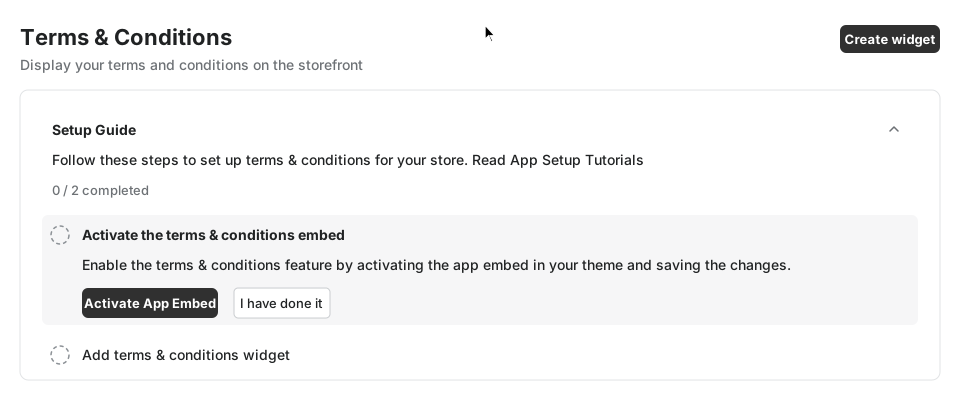
In your Shopify admin go to Apps and open Terms & Conditions. On the Home page, the Setup Guide lists the first step: Activate the terms & conditions embed.
- 2
Click Activate App Embed
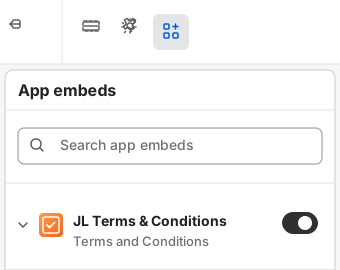
A new tab opens the Shopify theme editor with the app embeds panel open and the Terms & Conditions embed already switched on.
- 3
Save the theme
Click Save in the top right corner of the theme editor. The embed is only live on your store after you save.
- 4
Confirm in the app
Go back to the app and click I have done it. The step is marked as complete. If it is not, wait a few seconds and click the button again.
If the embed does not turn on
Open the theme editor, click App embeds (the plug icon in the left sidebar), find Terms & Conditions, switch it on and click Save. The embed must be active in your published theme.
Next step
Once the embed is active, create your first widget.